
Guide
Geode Launcher Settings Explained: Every Switch That Matters
Auto launch, framerate caps, screen zoom, themes and update checks: the launcher settings page translated into plain decisions.
CONTENTS On this page
The launcher's settings page is short, but every row earns its place. This guide walks it top to bottom, as configured on the rack behind Geode, so you can set it once and forget it exists.
General and gameplay
Theme picks light, dark or system for the launcher itself. Automatic launch starts the game shortly after you open Geode, erasing the two-app feeling; enable it once your setup is stable. Display mode and screen zoom shape the game window: zoom below 1.00x helps on phones where the game crowds the edges.
The framerate cap
Limit max framerate is the quietly important one. Capping frames can calm a hot phone and steady performance in heavy levels; our framerate guide covers choosing a number. Leave it disabled if your phone runs cool and smooth.
Updates
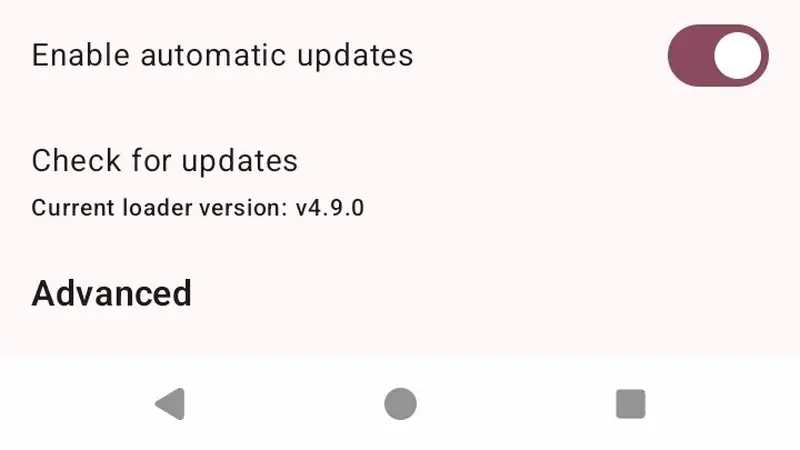
Enable automatic updates and let the framework keep itself current. Modding lives and dies by version harmony between game, framework and mods, and this toggle is the harmony keeper. The Advanced section, logs and developer options, is for troubleshooting; on an ordinary day you will never need it. Set them once, and the Geode APK quietly disappears into your routine.
Keep driving
Quick Answers
Should automatic launch be on?
Yes, once your setup is proven stable. It makes opening Geode feel like opening the game.
What does screen zoom actually do?
It reduces the size of the game window inside the screen, which some phones and players prefer.
Do launcher settings affect my game saves?
No. They shape the launcher and the game window, never your progress.